Connecting the Actxa Spark Band to Google Fit means your daily activity lands in one Google account instead of staying locked inside a single app. This guide covers what you need before you start, the setup flow, a second workflow for keeping data current, and fixes for the failures that actually happen in 2026.
- To connect the Actxa Spark Band to Google Fit, pair the band in the Actxa app first, then grant the sharing permissions.
- Check that your Android phone still supports Google Fit before you begin: Google is moving Fit users to Health Connect in 2026.
- Most failed syncs come from denied permissions, a signed-out Google account, or battery restrictions that kill background sync.
- Verify the connection by comparing today's step count in both apps after one full sync.
Why this matters
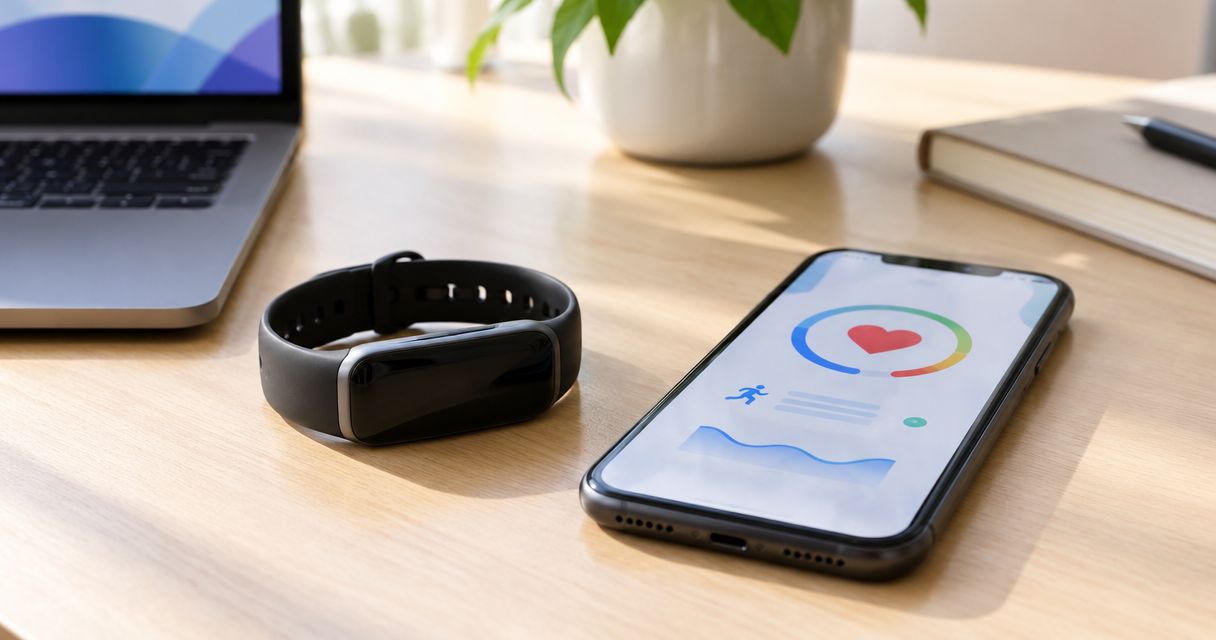
A screenless band like the Actxa Spark Band shows you nothing on the wrist. Everything you read, from activity to sleep, lives in an app. If you also use Google Fit for goals, Wear OS or third-party apps, a broken link between the two means two different step counts and no single source of truth.
The Actxa Spark Band is best for people who want a screenless wearable feeding data into their phone ecosystem, and the Google Fit link is what makes that data portable.
One caution first. Google has been retiring the Google Fit APIs in favor of Health Connect, Android's shared health-data layer. Depending on your phone and app versions in 2026, the Google Fit option may be labeled differently, or routed through Health Connect. The steps below are written to work under either label.
Before you start
- Accounts and devices: an Android phone, a Google account you are signed into on that phone, the Actxa app installed, and a charged Spark Band.
- Pairing comes first: the band must already be paired and syncing inside the Actxa app. Connecting a band that has never synced produces an empty Google Fit with no error message.
- The gotcha: Android battery optimization can stop the Actxa app from syncing in the background. Set the Actxa app to unrestricted battery use before you connect, or the link will look fine and then quietly go stale.
If you do not own the band yet, the Actxa shop lists the Spark Band alongside the Core Smart Ring and Sense 2 Smart Scale.
Set up the connection
The flow has four stages. Menu names differ between app versions, so match on meaning rather than exact wording.
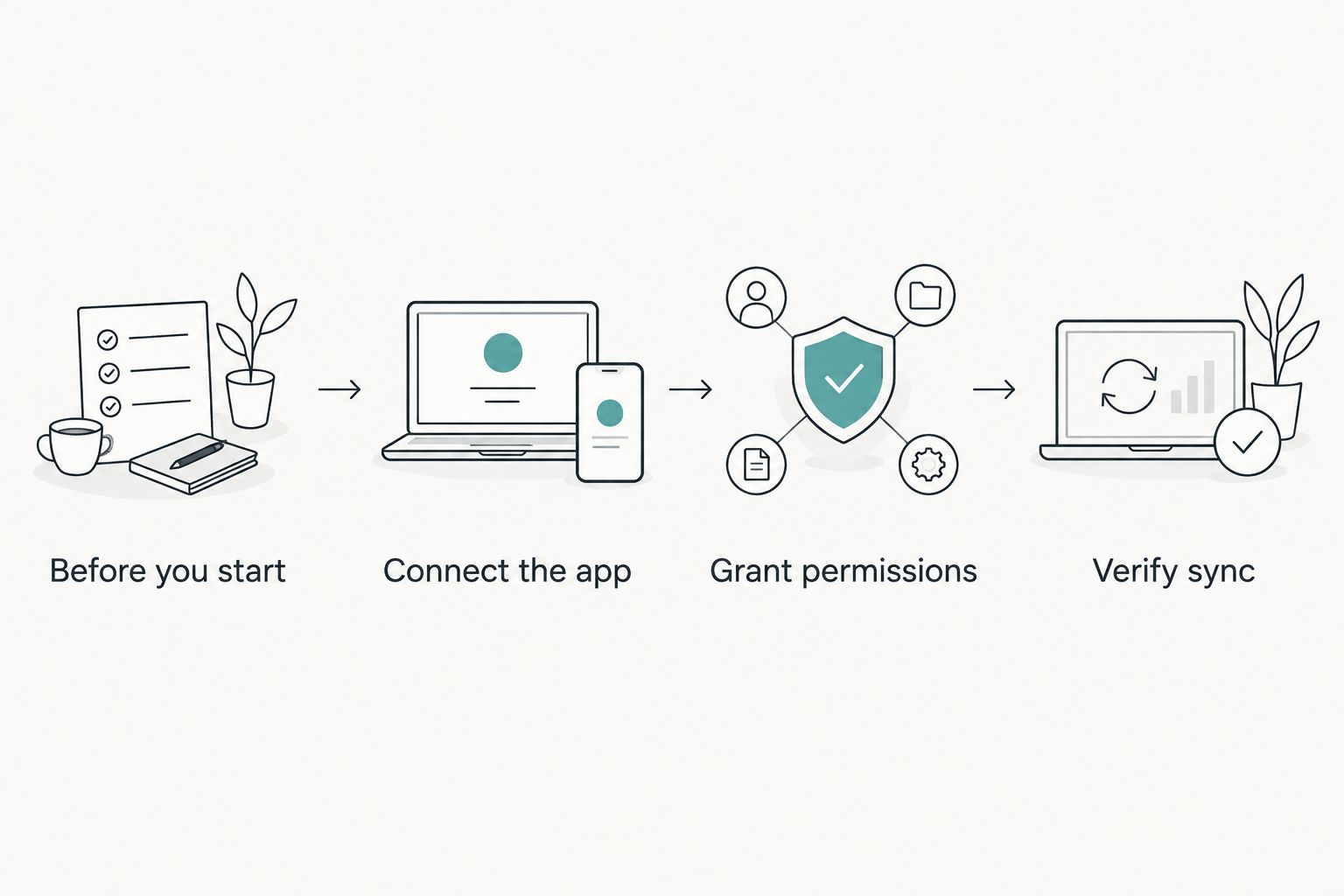
Confirm the band is syncing in the Actxa app
- Open the Actxa app and make sure the Spark Band shows as connected.
- Trigger a manual sync and wait for it to finish.
- Confirm today's activity appears inside the Actxa app.
Expected result: the Actxa app shows current data. If it does not, fix that first, because Google Fit can only receive what the Actxa app already holds.
Link Google Fit from the Actxa app
- In the Actxa app, open its settings and look for a section covering connected apps, integrations or third-party services.
- Select Google Fit. If your phone has moved to Health Connect, select that option instead.
- Sign in with the Google account you use on this phone when prompted.
- Approve the data types the screen offers. Allow activity at minimum, since steps are the data most people want shared.
Expected result: the Google Fit entry shows as connected or enabled inside the Actxa app.
Check permissions on the Google side
- Open Google Fit, or Health Connect on newer setups, and go to its settings.
- Find the list of apps with access and confirm the Actxa app is on it.
- Open the Actxa entry and check that each data type you approved is switched on.
Expected result: Actxa appears as an app with permission to write data. A permission left off here is the most common reason numbers never arrive.
Verify the first sync
- Walk around for a few minutes with the band on.
- Sync the band in the Actxa app.
- Open Google Fit and compare today's steps with the Actxa app.
Expected result: the two counts match, or Google Fit lags by a short delay. Small differences are normal when Google Fit also merges steps from your phone's own sensor.
Variant: keep Google Fit current every day
A one-time connection is not the same as a reliable one. To keep data flowing without opening the app manually:
- Leave Bluetooth on at all times and keep the band within phone range during the day.
- Open the Actxa app at least once a day so it can pull the band's stored data.
- Keep the Google Fit permissions untouched after Android updates. System updates sometimes reset them.
- Pick one source of truth for steps. If Google Fit receives steps from both your phone and the band, totals can look inflated.
Troubleshooting
| Problem | Likely cause | Fix |
|---|---|---|
| Google Fit shows no data | Permissions denied during setup | Reopen the permissions screen in Google Fit or Health Connect and switch on each data type for the Actxa app |
| Data arrives once, then stops | Battery optimization closing the Actxa app | Set the Actxa app to unrestricted battery use and allow background activity |
| Sign-in loop | Wrong or signed-out Google account | Sign in on the phone first with the account you want, then retry from the Actxa app |
| Step totals differ between apps | Google Fit merging phone and band steps | Choose one data source in Google Fit settings, or accept a small gap |
| Google Fit option is missing | Phone has moved to Health Connect | Look for Health Connect in the Actxa app's connected apps list |
If none of these fix it, disconnect Google Fit inside the Actxa app, force-stop both apps, reopen them, and connect again from scratch. A clean reconnect resolves most stubborn cases.
Customize your workflow
Once Google Fit is receiving data, you can route it further. The Spark Band to Strava workflow covers sending activity to a training log. If you wear the Core Smart Ring too, the Core Smart Ring to Samsung Health guide covers the Samsung route. Body composition from the Sense 2 Smart Scale has its own path in the Sense 2 to Google Fit guide.
Each of these Actxa devices feeds the same phone-first logic: pair in the Actxa app, share outward second.


Pros and cons of the Google Fit route
Pros
- Your Actxa activity sits next to data from other Android apps.
- Third-party apps that read Google Fit can use the band's data without their own Actxa integration.
- Setup is a one-time job of a few minutes.
Cons
- Google is retiring Fit in favor of Health Connect, so the option may change under you in 2026.
- Sync depends on background permissions that Android can revoke.
- Merged phone and band steps can double count.
FAQ
Can I connect the Actxa Spark Band to Google Fit?
Yes, through the Actxa app's connected apps or integrations settings, provided your phone still offers Google Fit or Health Connect. Pair the band in the Actxa app first, then grant sharing permissions.
Does the Spark Band connect directly to Google Fit?
No. The band syncs to the Actxa app, and the app passes data to Google Fit. If the band is not syncing in the Actxa app, nothing reaches Google Fit.
Why is Google Fit showing no data from my Spark Band?
Denied permissions are the most common cause. Open Google Fit or Health Connect, find the Actxa app in the access list, and switch on each data type.
Is Google Fit still supported in 2026?
Google is moving Fit users to Health Connect, so labels and availability depend on your phone and app versions in 2026. Check the Actxa app's connected apps list to see which option it offers.
Does the Spark Band work with iPhone and Apple Health instead?
This guide covers Android only. For an Apple Health route, see the Actxa Core Smart Ring guide for Apple Health, since inputs for the Spark Band on iPhone are not covered here.
Why do my step counts differ between Google Fit and the Actxa app?
Google Fit can merge steps from your phone sensor with the band's steps. Pick one primary data source in Google Fit settings to remove most of the gap.
One last thing
Before you troubleshoot anything else, check the battery setting. A band that syncs perfectly for two days and then goes silent is almost always a background restriction on the Actxa app, not a broken Google Fit link. If you want the broader picture of what step trackers do well in 2026, the best fitness bands for step tracking ranking is the place to compare.