Instead of re-entering every workout, first verify whether your Spark Band companion app offers a supported Strava connection; use automatic transfer only after a test succeeds. For actxa spark band strava sync, the safe fallback is a manual Strava activity—not an assumed connection through another health app.
- Actxa Spark Band Strava sync needs a verified connection before you rely on automatic workout transfers.
- A successful band-to-phone sync does not establish that Strava receives your workouts.
- Use a manual Strava activity when no supported transfer route is confirmed.
- Test one workout before importing history or enabling overlapping recording routes.
Why this matters
A wearable syncing with its companion app and a workout reaching Strava are different events. You need to verify both. Seeing an activity on your phone proves the first event, not the second.
Actxa describes Spark Band as a screenless wellness band covering fitness, activity, sleep, recovery, and glucose awareness. Those descriptions do not establish a Strava integration or specify which workout fields transfer.
Actxa Spark Band is best for health-conscious consumers seeking a screenless wellness wearable; Strava-dependent buyers should verify the connection before choosing it. Its stated wellness scope is a benefit, but an unverified transfer route is a limitation for this particular workflow.
For your 2026 setup, separate three questions: does the band record the activity, does the companion app receive it, and does a supported route deliver it to Strava? This guide walks through that verification and the manual alternative without inventing connection menus.
Before you start
- Prepare your accounts and access. Have your band, its installed companion app, the phone you use with it, and access to your intended Strava account. Finish the device setup using the instructions supplied with your device.
- Prepare a recognizable test. Plan a 10-minute walk and note its date and start time. This is a suggested test duration, not a device requirement or a claim about transfer speed.
- Check the non-obvious gotcha. Permission to share data with a phone health platform does not prove an onward workout connection to Strava. Confirm the direction and supported activity types before enabling additional services.
Avoid deleting old workouts or disconnecting existing services during this check. Keep your original records until you know which route produces the destination activity.
Choose your recording route
Choose the route by its verified result, not by how many apps it connects. A short chain you can test is more useful than a complicated chain whose final transfer is uncertain.
| Route | Best for | Advantage | Limitation |
|---|---|---|---|
| Verified companion-app connection | People whose installed app explicitly supports Strava workout transfer | Removes repeated entry for supported activities | Requires confirmation of transfer direction and supported fields |
| Manual Strava activity | People who need a workout log without a confirmed connection | Lets you record the activity summary yourself | Does not recreate an original GPS route or continuous sensor recording |
| Separate Strava recording | People who want Strava to record a supported workout directly | Avoids depending on a band-to-Strava transfer | Creates a separate recording and needs duplicate control |
Use one route to create each Strava activity. Two sources recording the same workout do not become one record simply because their times overlap.
For a 2026 setup, do not treat an old screenshot or another wearable's instructions as proof of the menus in your installed app. Use the options actually present and the device's current official instructions.
Connection verification
Establish the source record
- Complete the proposed 10-minute walk using the activity-recording method documented for your device. Do not assume a particular gesture, button sequence, or exercise mode.
- Open the companion app and follow its documented device-sync procedure. Keep the device and phone together while you check the result.
- Locate the completed activity. Note the date, start time, activity type, duration, and any other recorded fields you intend to compare.
- Distinguish an individual workout from a daily activity total. A daily total is not evidence that an individual workout is ready for transfer.
Expected result: You can identify a specific source workout in the companion app. If you cannot, resolve the band-to-app record first; Strava troubleshooting starts too late in the chain.
Do not manufacture a workout from a daily step total. Record only the details you actually know, and leave unsupported fields out of any manual entry.
Confirm the transfer route
- Check the companion app and its official help for an explicitly supported Strava connection. Look for instructions that name the destination, rather than assuming every sharing permission exports workouts.
- Confirm the direction. The instructions must describe sending supported activities to Strava, not merely receiving information from another service.
- Follow the documented authorization process only if that connection exists. Check that the Strava account shown during authorization is the account you intend to use.
- Review the permissions requested before accepting them. Do not grant unrelated access just to experiment with a possible route.
- If no supported route is identified, stop the automatic setup here and use the manual workflow below.
Expected result: You have either a documented, authorized transfer route or a clear decision to enter activities manually. An unsuccessful search for a menu is not a reason to invent one.
A support request is more useful when it asks a precise question: does this device and companion-app version send newly completed workouts to Strava, and which fields does it send? Ask separately whether historical activities and later edits transfer.
Validate the destination activity
- If you established a supported connection, complete a new test activity after authorization. Do not use an old activity as the only test of a new-workout connection.
- Sync the source activity using the documented process. Then check the intended Strava account for a matching activity.
- Compare the date, start time, activity type, and duration. Compare distance or other measurements only when both records actually contain them.
- Check whether the workout appears once. Record which route created it before enabling any additional connection.
- If the activity does not arrive, follow the connection's documented troubleshooting instructions. Do not promise yourself a transfer deadline that the service does not specify.
Expected result: A matching destination activity confirms that this specific transfer worked. It does not establish historical backfill, transfer of every sensor field, or synchronization of future edits.
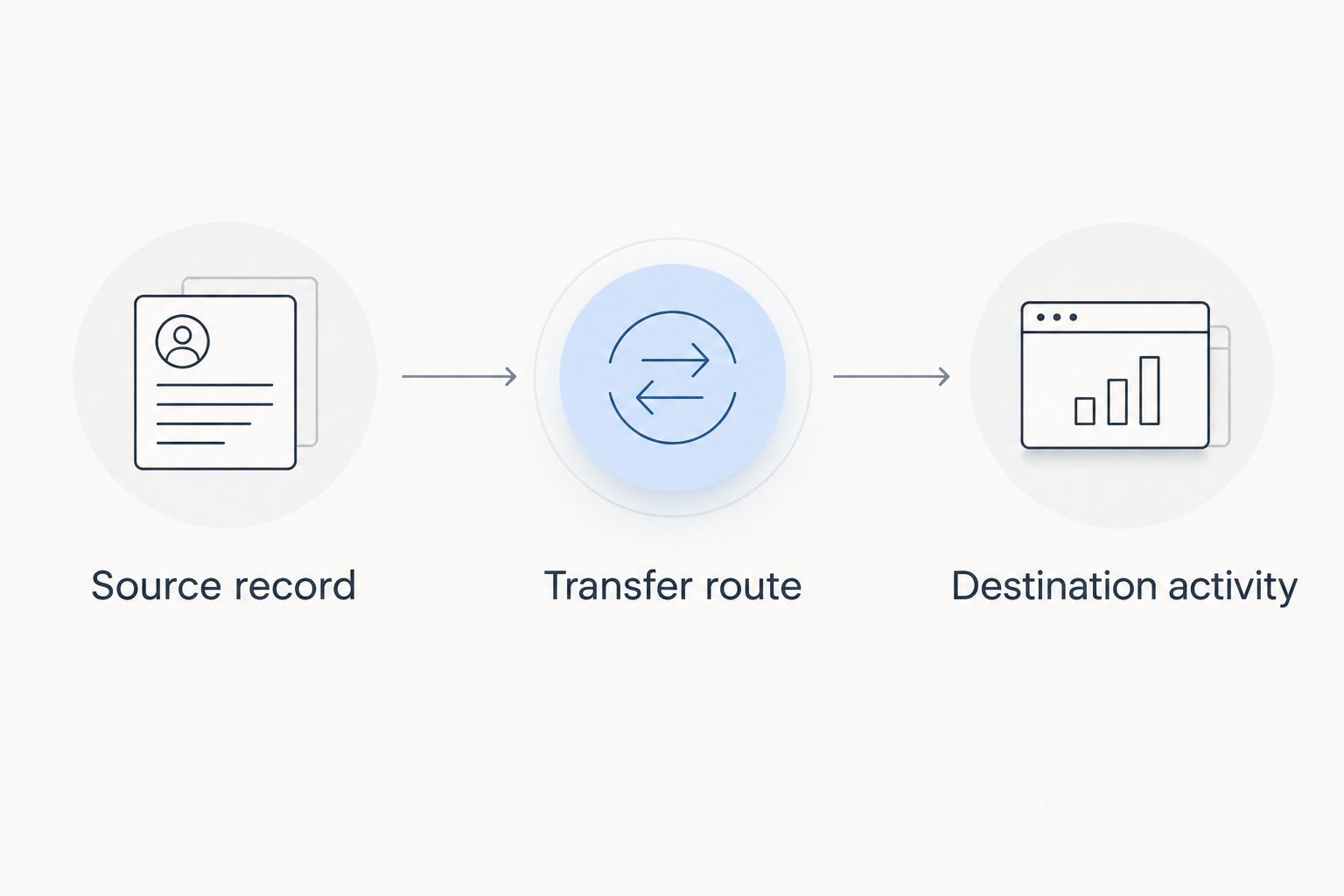
Keep a short setup note with your app version, authorization date, and the fields that reached Strava. That note gives you a baseline if your 2026 configuration changes later.
Manual Strava activity setup
A manual activity is the practical fallback when you cannot establish a supported connection. It creates a workout summary in Strava; it does not turn the band into a connected Strava device.
Create the activity
- Sign in to Strava on the web and confirm the account before entering anything.
- Open the plus menu and select Add manual entry.
- Select the appropriate sport and enter the actual activity date, start time, and duration. Add distance only when you have a reliable distance for that workout.
- Give the activity a recognizable title. Do not describe it as an automatic import or include measurements you did not record.
- Review the entry, then select Create.
- Open the saved activity and check its details and visibility. Correct entry mistakes before using it as your workout record.
Expected result: Strava contains a manually entered activity matching the summary you supplied. Missing route or continuous sensor data is not a failed sync: those data were never imported.
For your first manual test, use 1 activity rather than entering an entire month. Check the result before repeating the process; this is a setup recommendation, not a platform limit.
Keep the manual process consistent
Choose a repeatable point at which you enter completed workouts, such as after checking the companion app. Keep the source record available until you have checked the Strava entry.
If you use notes to track pending entries, record the date, activity type, and whether you have already created the destination activity. Avoid copying unnecessary health information into titles or descriptions that others can see.
Variant: record the workout directly in Strava
Separate Strava recording is an adjacent workflow, not Spark Band synchronization. Use it when you want a supported Strava recording without depending on an unverified transfer from the band.
- Confirm that Strava supports recording the intended activity on the device you will use.
- Before starting, review the recording permissions and activity visibility in that installation.
- Record and save the workout through Strava's documented process. Treat any band record as a separate source.
- Check the saved Strava activity before adding a manual entry for the same workout.
- If a verified automatic connection is also enabled, check for a second copy and choose which route you will retain for future workouts.
Expected result: You have a Strava-recorded activity without claiming that band measurements transferred into it. Keeping both apps does not establish a shared sensor stream.
Troubleshooting
The workout is missing from the companion app
Start with the source device and its documented synchronization procedure. Confirm that you are checking the intended account and an individual activity rather than a daily summary. Do not repeatedly reconnect Strava while the source workout is absent.
The source workout exists, but Strava has no matching activity
Check whether the connection explicitly supports outbound workouts and whether authorization used the correct Strava account. If the route is unverified, use a manual entry rather than repeatedly granting more permissions.
The workout appears twice
Compare the records and identify their sources before deleting anything. Keep the record that contains the information you need, then stop one of the overlapping creation routes. Do not assume removing a connection will remove existing copies.
The activity has no map or heart-rate trace
First establish whether the source recorded those data and whether the transfer route supports them. A manual activity contains the information you entered; creating it does not reconstruct a route or sensor trace.
The activity appears under the wrong date or time
Compare the source record with the destination and check the time information used during entry. Correct a manual-entry mistake directly in Strava. For an automatic transfer, preserve the original details when reporting the mismatch to support.
Customize your workflow
After the first successful activity, review 2 separate workouts before treating the process as routine. This suggested check helps you distinguish a repeatable workflow from an isolated success; it is not a reliability benchmark.
Keep a simple record of what your setup actually does:
- Which service creates the Strava activity.
- Which workout types you have verified.
- Which fields appear at the destination.
- Whether you have tested historical activities or subsequent edits.
For your 2026 workflow, keep workout transfer separate from sleep, recovery, and other wellness tracking. Success with one data type does not demonstrate support for another. Expand the setup only when you have a specific destination and a documented reason to send that information there.
FAQ
Can I sync Actxa Spark Band directly to Strava?
Verify direct Strava support in your installed companion app or current official device instructions before relying on it. The product description alone does not establish a supported connection or its transfer capabilities.
What's the safest fallback if automatic transfer is not confirmed?
Create a manual Strava activity using the workout details you actually recorded. This creates a summary, not an import of the original route or continuous sensor data.
Does syncing my band with my phone mean Strava gets the workout?
No. Band-to-phone synchronization and delivery to Strava are separate events, so verify a matching activity in the destination account.
Will connecting a phone health app automatically send workouts to Strava?
Do not assume an onward transfer. Confirm the supported data direction and workout types for each connection in the chain.
Can I add a GPS route by creating a manual Strava activity?
A manual activity does not recreate the workout's original GPS route. Use a supported recording or import process when you need route data.
Will connecting Strava import all my older workouts?
Do not assume historical backfill. Check the connection's documented behavior separately from testing a newly completed workout.
How do I avoid duplicate workouts in Strava?
Choose one route to create each Strava activity. Check for an existing automatic or directly recorded activity before adding a manual copy.
One last thing
A workout appearing once does not prove that later edits will sync. If edit synchronization matters to your 2026 routine, test a harmless title change and inspect the destination separately. Until that behavior is verified, treat the source and destination as independent records.