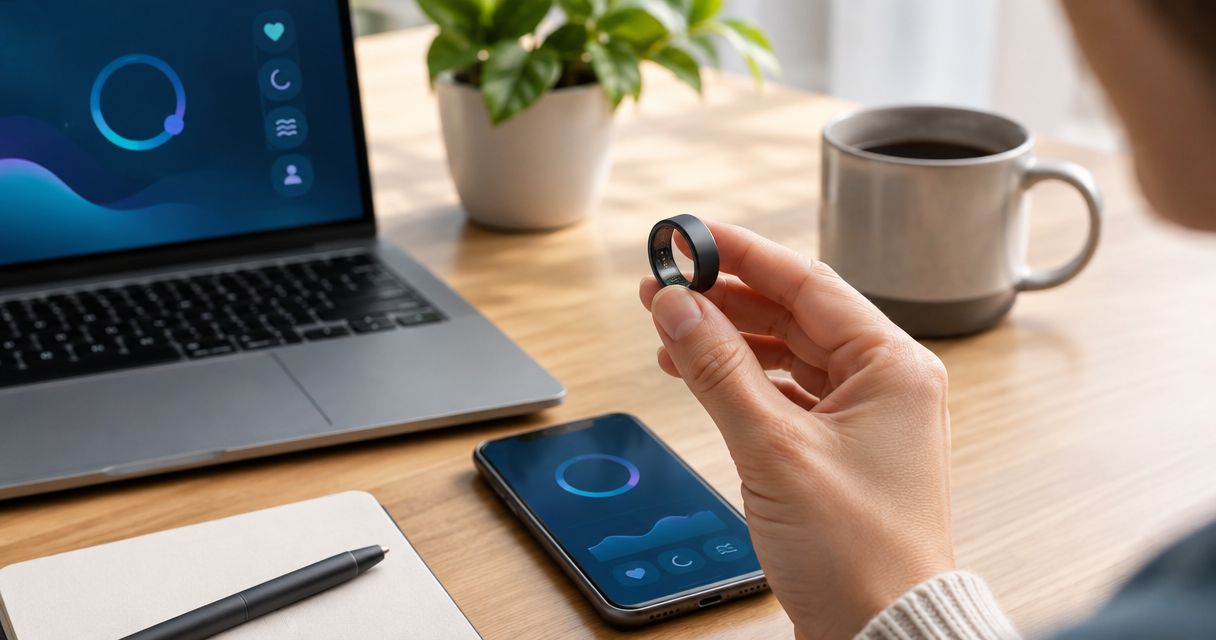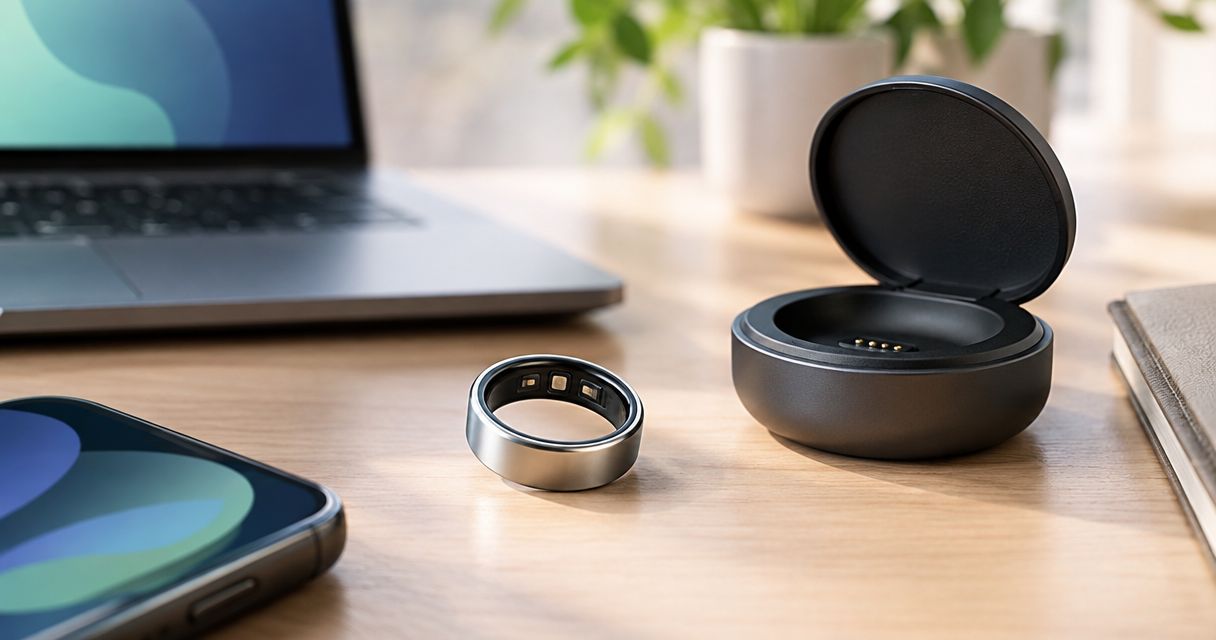
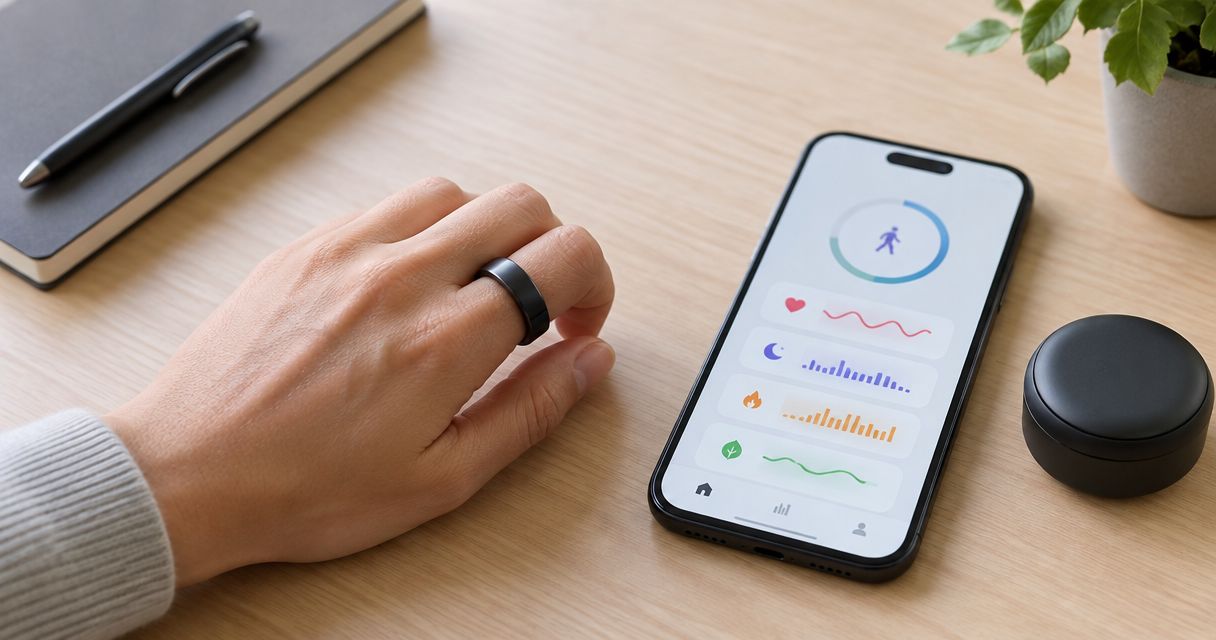
Instead of manually copying wellness readings between apps, connect Actxa Core Smart Ring to Samsung Health through Health Connect only if the ring’s companion app supports writing the data you need. Verify that connection first, then authorize Samsung Health to read the same data types; Bluetooth pairing alone does not establish this workflow.
- To connect Actxa Core Smart Ring to Samsung Health, first verify the companion app’s Health Connect support.
- Health Connect needs a writing app and a reading app with matching data permissions.
- Bluetooth pairing does not prove Samsung Health can import ring measurements.
- Test one supported metric before relying on automatic health data sharing.
Why this matters
A ring connection and an app integration solve different problems. Bluetooth moves readings from the wearable to its companion app; an authorized health-data connection lets another app access supported records.
Actxa Core Smart Ring is designed for health-conscious users who want a discreet wearable. For Samsung Health users, the separate question is whether its companion app can export the required records through a supported connection. The Actxa store identifies the wearable, but a product name alone does not establish app compatibility.
For your 2026 setup, check the integration on your own phone rather than assuming another wearable’s instructions apply. A working connection requires agreement across the source app, the data-sharing service, and Samsung Health—not just a successful device pairing.
Before you start
- Have the ring and its correct companion app ready. Use the app identified in the ring’s instructions, sign into your account, and confirm that a recent reading appears there before configuring another connection.
- Use a compatible Android phone with Samsung Health and Health Connect accessible. Update the relevant apps, keep Bluetooth enabled for ring synchronization, and have access to the phone’s app-permission settings.
- Check the non-obvious gate: export support. The companion app must support writing the relevant records to Health Connect. If it does not appear among apps eligible for permission, stop; installing Health Connect does not add an integration to an unsupported app.
Do not reset the ring or erase its history while investigating compatibility. Neither action creates missing export support, and both distract from the actual question: which app can write which records?
Connection route selection
Choose your route based on demonstrated support, not on the number of health apps installed. These are workflow choices, not claims that every route is supported by this ring.
| Workflow | Best for | Advantage | Limitation |
|---|---|---|---|
| Companion app through Health Connect | Android users whose companion app explicitly supports Health Connect export | Separates data-writing and data-reading permissions | Only supported, authorized record types can pass through |
| Companion app only | Users without a verified Samsung Health export route | Keeps viewing close to the original device records | Does not combine those records inside Samsung Health |
Use Health Connect only after confirming source-app support. If that check fails, the companion-app-only workflow is the correct stopping point—not an invitation to try unrelated bridges.
Avoid treating a connection to a different health service as proof of Samsung Health compatibility. Each service has its own integration requirements and permissions.
Companion app configuration
The first configuration unit establishes whether the ring produces usable source records and whether an export route exists. Complete this before changing permissions in Samsung Health.
- Confirm the source. Open the companion app specified in the ring’s instructions. Check that the connected device is your ring and that you are using the intended account.
- Synchronize the ring. Follow the companion app’s documented synchronization procedure. Wait until a recent measurement or activity record appears, then note its date, time, and type.
- Find documented export support. Check the companion app’s connection settings or its official help for an explicit Health Connect integration. Use the actual labels shown in that app; do not substitute instructions written for another wearable.
- Open the supported connection. If the companion app offers Health Connect, follow its authorization flow. If it offers no such connection and its documentation does not establish support, stop this route here.
Expected result: You have a recent source record and an explicit Health Connect authorization route. Seeing the ring in your phone’s Bluetooth device list is not an equivalent result.
For a 2026 connection check, record the companion app version alongside your notes. That makes a later support conversation specific without assuming that an older walkthrough matches your installed app.
Health Connect permissions
Health Connect is the permission-controlled handoff between participating apps. It does not collect ring measurements directly, and it cannot manufacture records the companion app never exports.
- Open Health Connect. Use your phone’s settings search to find Health Connect, or open its installed app where applicable. Its entry point depends on the Android version and phone software.
- Open App permissions. Select App permissions and locate the ring’s companion app. If the app is absent, return to its documented integration setup rather than granting permissions to unrelated apps.
- Allow source writing. Enable write access only for supported data types you intend to share. A source app with read access alone cannot contribute its own ring records through that permission.
- Check the scope. Note which data categories the companion app actually requests. Do not assume a category exists because a similar-looking measurement appears on the companion app’s dashboard.
Expected result: Health Connect lists the companion app with permission to write the chosen record type. Permission establishes authorization, not proof that a record has already been transferred.
Choose 1 metric for the initial test. This is a troubleshooting recommendation, not a limit on the integration: a narrow test makes a missing permission or unsupported category easier to isolate.
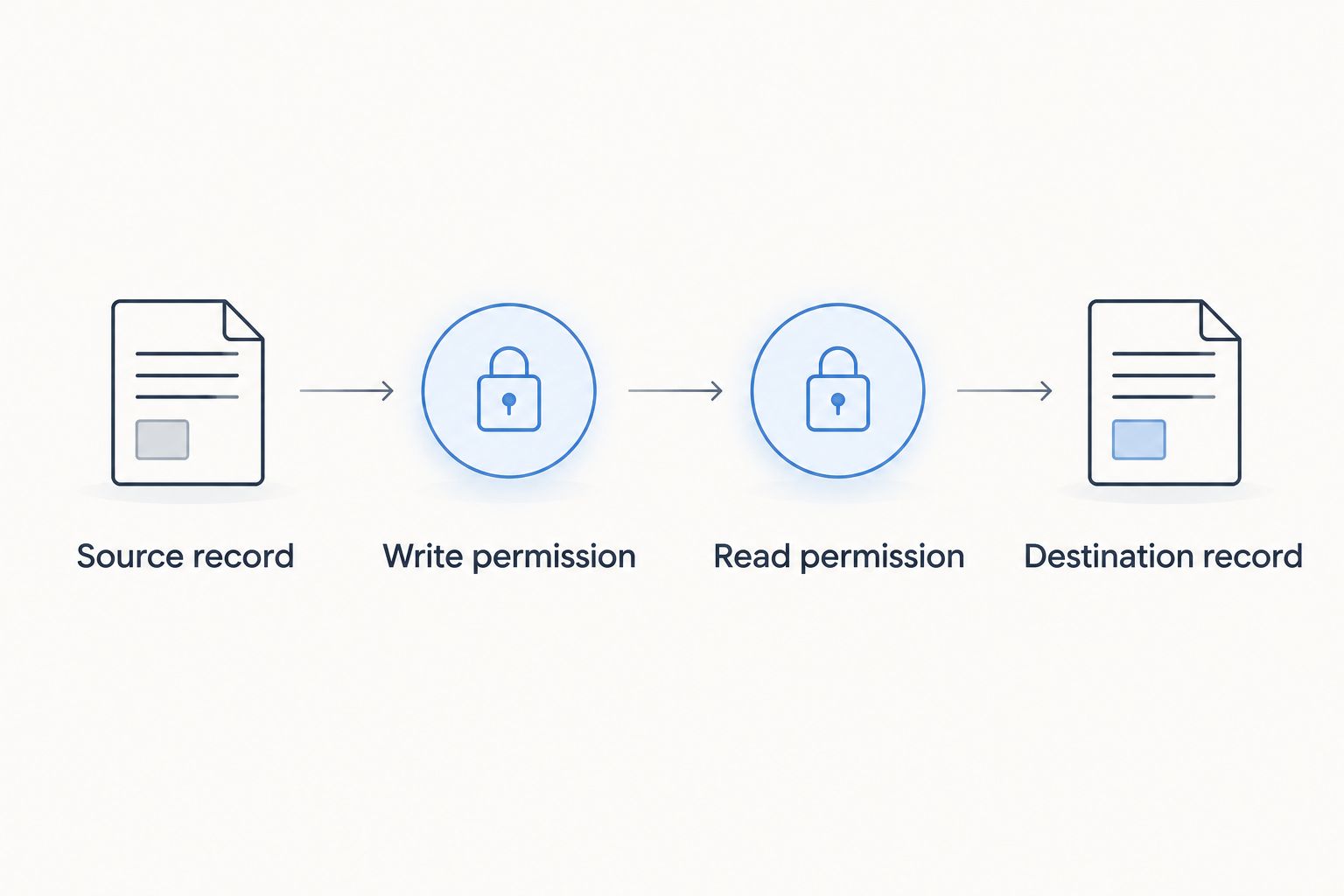
Samsung Health permissions and validation
Configure the receiving app only after establishing the source app’s export path. This order prevents an empty destination from being mistaken for a ring-pairing problem.
- Open Samsung Health settings. In Samsung Health, open Settings and look for Health Connect. Follow the connection prompt when that entry is present; its location can vary by app version.
- Authorize destination reading. In Health Connect’s App permissions, select Samsung Health and allow reading for the same supported category the companion app can write.
- Create or synchronize a fresh record. Return to the companion app, synchronize the ring, and identify a new record. Do not rely exclusively on historical records, because historical access and backfill are separate from a new-data test.
- Inspect the destination. Reopen Samsung Health and check the corresponding category and date. Where record details expose a source, inspect it rather than assuming every displayed value came from the ring.
Expected result: A fresh, supported record reaches Samsung Health through the authorized connection. If permission is enabled but no matching record appears, the workflow is not yet verified.
Compare the source timestamp with the destination date, especially around midnight. Two screens can group a record differently without proving that the underlying measurement disappeared.
Keep your 2026 validation note short: source category, source timestamp, destination category, and observed result. Avoid declaring the entire integration successful after checking only an unrelated value already present in Samsung Health.
Automatic updates after the first successful transfer
Once a fresh record has transferred, test the adjacent workflow: letting later ring synchronizations feed Samsung Health without repeating the authorization steps. Automatic sharing is a second verification task, not an assumption.
- Leave the working permissions unchanged and continue wearing the ring normally.
- Allow the companion app to synchronize again using its documented behavior.
- Check whether another supported record reaches Samsung Health without reopening the permission flow.
- If updates occur only after opening the companion app, inspect that app’s documented background-operation requirements and your phone’s battery restrictions.
Expected result: Later supported records follow the same established route. This does not establish a guaranteed transfer interval or prove that every category updates automatically.
Observe the workflow across 1 day of ordinary use before depending on it for your routine. This is a practical testing window, not a promised synchronization time.
The benefit is less manual checking once the route works. The trade-off is that source synchronization, background behavior, and receiving-app access remain separate dependencies.
Troubleshooting
The companion app is missing from Health Connect
Return to the companion app’s official integration instructions and confirm that Health Connect export is explicitly supported. Open its connection flow if one exists, then check App permissions again.
If no supported route exists, keep using the companion app. Reinstalling Samsung Health cannot add an export feature to the source app.
Samsung Health shows no new ring records
Check the handoff in order: recent record in the companion app, source write permission, then Samsung Health read permission for the matching category. Inspect the same date in both apps.
A green permission toggle proves access was granted; it does not prove that the companion app wrote a record. Return to the source before changing unrelated phone settings.
Some measurements appear, but others do not
Inspect each category separately. A successful transfer of one supported record type does not establish support for every wellness metric or app-specific score.
Keep unsupported scores in the companion app rather than renaming them as another measurement. Similar labels do not establish equivalent meaning.
Activity totals look duplicated or inconsistent
Check whether the phone or another wearable is also contributing activity records. Compare record sources and time ranges before deciding which value represents the ring.
During testing, isolate 1 data source where the apps allow it. Do not delete historical records simply to make totals agree; first establish which app created each contribution.
Sharing stops after initially working
Recheck permissions and source synchronization, then inspect battery or background restrictions affecting the companion app. After a phone change or app reinstallation, repeat the fresh-record test instead of assuming the old connection remains authorized.
Keep your 2026 troubleshooting notes tied to the installed app versions. Follow current permission screens rather than screenshots from a different phone configuration.
Customize your workflow
After verifying the first metric, expand one category at a time. For each addition, repeat the same check: source record, supported export, write permission, read permission, destination record.
Keep your permissions narrower than your curiosity. If your goal is viewing a specific activity category in Samsung Health, authorize that category first rather than enabling every offered data permission without a purpose.
Actxa Core Smart Ring remains a wearable wellness device; a data connection changes where supported records are viewed, not what the ring measures. Use the companion app for records or explanations that do not transfer.
If you change phone platforms, treat that as a new integration project. An Android permission setup does not carry over automatically to another health-data system.
FAQ
Can I connect Actxa Core Smart Ring directly to Samsung Health?
Do not assume a direct connection exists. First verify an explicitly supported export route in the ring’s companion app; Bluetooth pairing alone does not establish Samsung Health integration.
Can Health Connect transfer ring data to Samsung Health?
Health Connect can share supported records when the companion app can write them and Samsung Health can read them. Both apps need matching permissions for the relevant category.
Why isn’t my ring’s companion app listed in Health Connect?
Check whether the companion app supports Health Connect and whether its connection flow has been enabled. Installing Health Connect alone does not make an unsupported app eligible.
Will all my ring measurements appear in Samsung Health?
Only supported and authorized record types can transfer through the connection. Verify each category separately rather than assuming that a successful activity transfer includes proprietary wellness scores.
Do I need to pair the ring inside Samsung Health?
Follow the ring’s documented pairing instructions in its designated companion app. A Health Connect workflow shares app records; it is separate from pairing the wearable with its companion app.
Why do Samsung Health and my companion app show different totals?
Compare the record sources, dates, and time ranges first. Phone activity or another wearable can contribute additional records, so a destination total is not necessarily a ring-only total.
Will old measurements transfer after I enable permissions?
Do not assume historical measurements will transfer. Verify a fresh record first, then check the participating apps’ documented historical-data access and export behavior.
One last thing
The strongest connection test is a newly created record with an identifiable source—not an enabled toggle. Before accepting your 2026 setup as complete, check that the destination record corresponds to something the ring’s companion app actually recorded.
That distinction saves you from troubleshooting the wrong layer. Device pairing, permission approval, record export, and destination display are separate milestones.