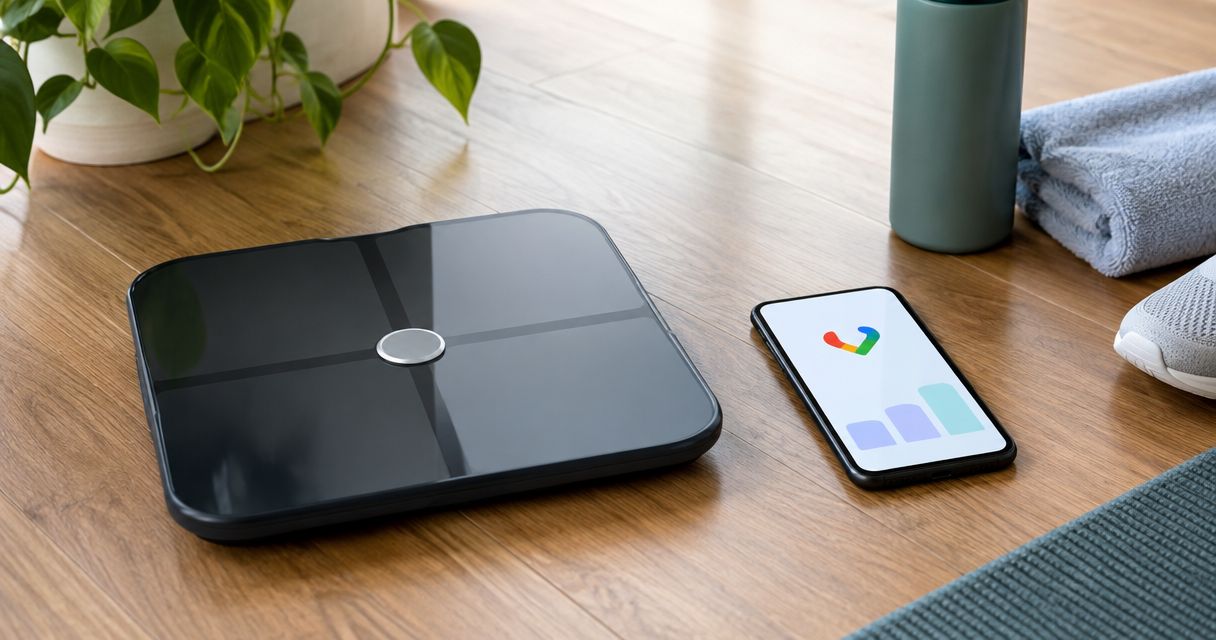
Weighing in on the Actxa Sense 2 Smart Scale and then retyping the number into another app every morning is wasted effort. Link the scale's data to Google Fit (or its Android replacement, Health Connect) once, and every weigh-in lands where your other fitness data already lives. This guide covers the setup, the verification check, and the failures that actually happen. The scale is sold on the official Actxa store.
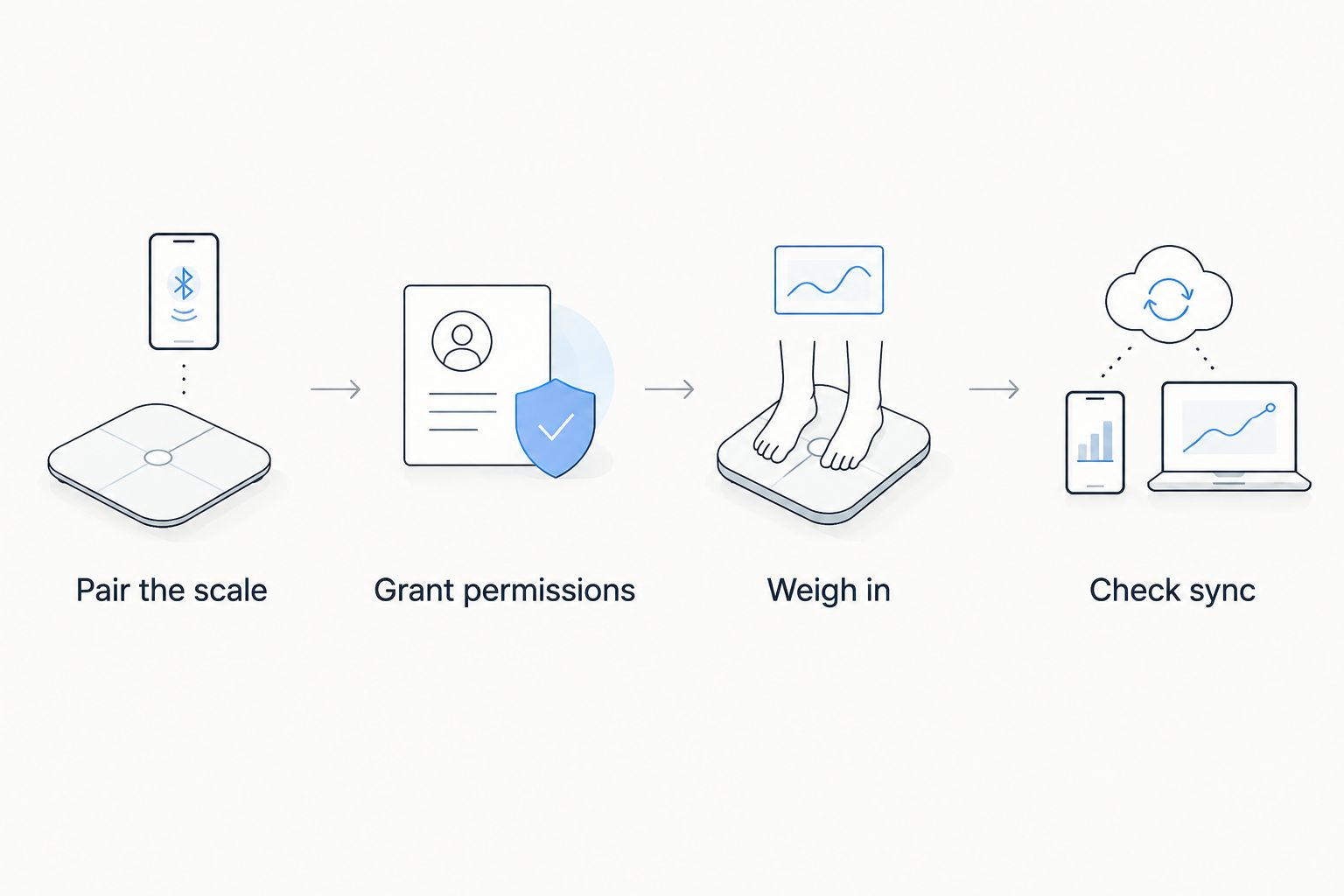
- To connect the Actxa Sense 2 Smart Scale to Google Fit in 2026, pair the scale in the Actxa app first, then grant data sharing from the app's settings.
- Google is moving Android health data from Google Fit to Health Connect, so check which one your phone offers.
- Weigh in barefoot after pairing to confirm the reading reaches Google Fit or Health Connect.
- Most failed syncs come from denied permissions, a logged-out account, or battery restrictions on the Actxa app.
Why this matters in 2026
A scale that keeps its data in one app gives you a number. A scale that feeds your wider health record gives you a trend next to your steps, sleep and workouts. That is the reason to connect the Actxa Sense 2 Smart Scale to Google Fit.
The Actxa Sense 2 Smart Scale is positioned as a professional-grade smart body scale that reports more than weight, with a fuller picture of body composition. Body composition readings are only useful when you can compare them over weeks, and a shared health platform is where that comparison happens.
One 2026 wrinkle: Google is winding down the Google Fit APIs and pushing Android health data into Health Connect. Depending on your phone and app version, you may see one option, the other, or both. The steps below cover both routes.
Verdict: if you track fitness on an Android phone, connect the Actxa Sense 2 Smart Scale through whichever of Google Fit or Health Connect the Actxa app offers. If you use an iPhone instead, the Apple Health version of this setup is the better reference.
Before you start
- An Android phone with Bluetooth on, and the Actxa app installed. The scale pairs to the app first. Google Fit or Health Connect only receives data from the app afterward.
- A Google account signed in on the phone. The account you pick during connection is where weights are stored, so choose the one you actually use.
- The scale on a hard, flat floor. Carpet gives unstable readings, and an unstable first reading makes it hard to tell later whether a sync worked.
- The gotcha: the Actxa app's connection to Google Fit or Health Connect is a separate permission from Bluetooth pairing. Pairing the scale does not share anything with Google. You must grant the data permissions yourself, and skipping that screen is the number one reason people say it is not syncing.
The exact menu labels vary by app version and phone, and the app, not this guide, is the source of truth for wording. Where this guide names a setting, look for the closest match in the Actxa app and in Android's own settings.
Set up your scale in the Actxa app
Do this first, even if you already own the scale. A scale that has never completed a weigh-in has nothing to send.
- Install the Actxa app from the Google Play Store and create or sign in to your account.
- Switch Bluetooth on and allow the app the nearby-devices and location permissions Android asks for during pairing.
- Add the Sense 2 Smart Scale as a new device from the app's device screen and follow the on-screen pairing prompts.
- Step on the scale barefoot and stay still until the reading finishes.
Expected result: the reading appears in the Actxa app with your weight on the home or history screen. If it does not, fix this before touching Google Fit, because nothing downstream works without it.
Connect the Actxa app to Google Fit
This is the core move. You are telling the Actxa app it may write your weight to your Google account.
- In the Actxa app, open its settings or profile area and look for a connected apps, data sharing or third-party integrations entry.
- Select Google Fit if it is listed. If you only see Health Connect, skip to the next section.
- Choose the Google account that should receive the data.
- On the permissions screen, switch on the categories the app requests, at minimum weight. If the app also asks for body fat or other body measurements, enable those if you want them stored.
- Confirm the connection and return to the app.
Expected result: the integration entry shows as connected or enabled. The next weigh-in should be written to Google Fit.
Turn on only what you need. Granting every category is fine for a personal scale, but on a shared household phone, share weight only.
Connect through Health Connect instead
Google Fit is no longer the only home for Android health data. Health Connect is Android's shared store, and many apps now write there rather than to Google Fit directly. If your Actxa app version lists Health Connect, use that route.
- In the Actxa app, select the Health Connect entry in the connected apps or data sharing area.
- Android opens a Health Connect permission sheet. Allow the data types the sheet lists for weight and body measurements.
- Open the Health Connect settings on your phone and check the app permissions list. The Actxa app should show as having access.
- If you still want the data in Google Fit, check whether Google Fit on your phone reads from Health Connect. Whether it does depends on your phone and app versions, so check inside Google Fit instead of assuming.
Expected result: the Actxa app appears under allowed apps in Health Connect, and weigh-ins are stored there.


Verify the connection with a test weigh-in
Do not trust a toggle. Test it.
- Step on the Actxa Sense 2 Smart Scale and wait for the reading to complete.
- Open the Actxa app and confirm the new entry is there.
- Open Google Fit (or Health Connect) and look at the weight history. The new reading should show with a timestamp matching your weigh-in.
Expected result: the same weight in both places. A small gap in unit rounding is normal. A missing entry is not, and the next section covers it.
After a successful test, the scale only needs to see the phone occasionally. Syncing normally happens when you open the Actxa app, so open it after weighing in for the first few days until you trust the pattern.
Sync weight whenever it changes
A one-time connection is the first workflow. The second, more useful one is keeping it current without thinking.
- Weigh in at a consistent time. Same time each morning, same spot, same barefoot routine. Consistency makes the trend line in Google Fit meaningful.
- Open the Actxa app after weighing in during the first week, so you learn how quickly your phone passes data on.
- Keep Bluetooth on when you step on the scale. A reading taken with the phone out of range may need the app opened before it appears.
If you track more than weight, the same Actxa app also covers other Actxa devices in the store, so the permissions you grant once apply to all of them.
Troubleshooting
The reading is in the Actxa app but not in Google Fit. Open the connected apps entry in the Actxa app and confirm the integration is still enabled. Then check that the weight permission is on. A toggled-off category is the most common cause.
The Google Fit option is missing from the Actxa app. Update the app from the Google Play Store. If it still only shows Health Connect, that is the route your version supports, so use the Health Connect steps above.
Android keeps closing the Actxa app in the background. Battery optimization can stop the app from sending data. Exclude the Actxa app from battery restrictions in your phone's app settings, then weigh in again.
Pairing fails or the scale is not found. Switch Bluetooth off and on, confirm the nearby-devices permission is granted, and keep the phone close to the scale. Make sure the scale is not still paired to a different phone.
Two sources show different weights. You likely have another app writing weight to the same account. In Google Fit or Health Connect, review which apps have write access and remove the ones you do not use.
Customize your workflow
Once weight flows through, expand what you track.
- Compare weight against sleep and activity in the same health app, so a bad week of sleep and a weight bump show up together.
- If body composition is your main interest, read the guide to smart scales with body fat tracking before deciding which readings to trust.
- Review your connected app permissions every few months and remove anything you stopped using.
FAQ
Can I connect the Actxa Sense 2 Smart Scale to Google Fit?
Connection runs through the Actxa app, which pairs with the scale first and then shares data to your Google account. Check the app's connected apps or data sharing area for a Google Fit or Health Connect entry, since what appears depends on your app and phone version.
Is Google Fit being replaced by Health Connect?
Google is moving Android health data into Health Connect and winding down the Google Fit APIs. If the Actxa app lists Health Connect, use it. Your data then lives in Android's shared health store.
Why is my weight not showing in Google Fit?
The usual cause is a missing permission, since Bluetooth pairing and data sharing are separate. Re-open the connected apps entry in the Actxa app and confirm the weight category is on.
Do I need the Actxa app to use the scale with Google Fit?
Yes. The Actxa app is the bridge, so the scale pairs with it and the app passes readings on once you grant permission.
Does the connection work on an iPhone?
Google Fit and Health Connect are Android services. iPhone users should look at the Apple Health route instead.
Will the scale sync if my phone is not nearby?
Readings generally reach the app when the phone and scale can talk over Bluetooth. If you weigh in without your phone, open the Actxa app afterward and check that the entry appears.
Which data should I share with Google Fit?
Share weight at minimum. Add body measurements only if you want them stored in the same account, and limit permissions on a shared phone.
One last thing
Weight is a noisy number. Day-to-day swings are normal, so judge the line over several weeks in Google Fit, not the single morning reading. The connection only earns its place if you look at the trend and ignore the daily wobble.