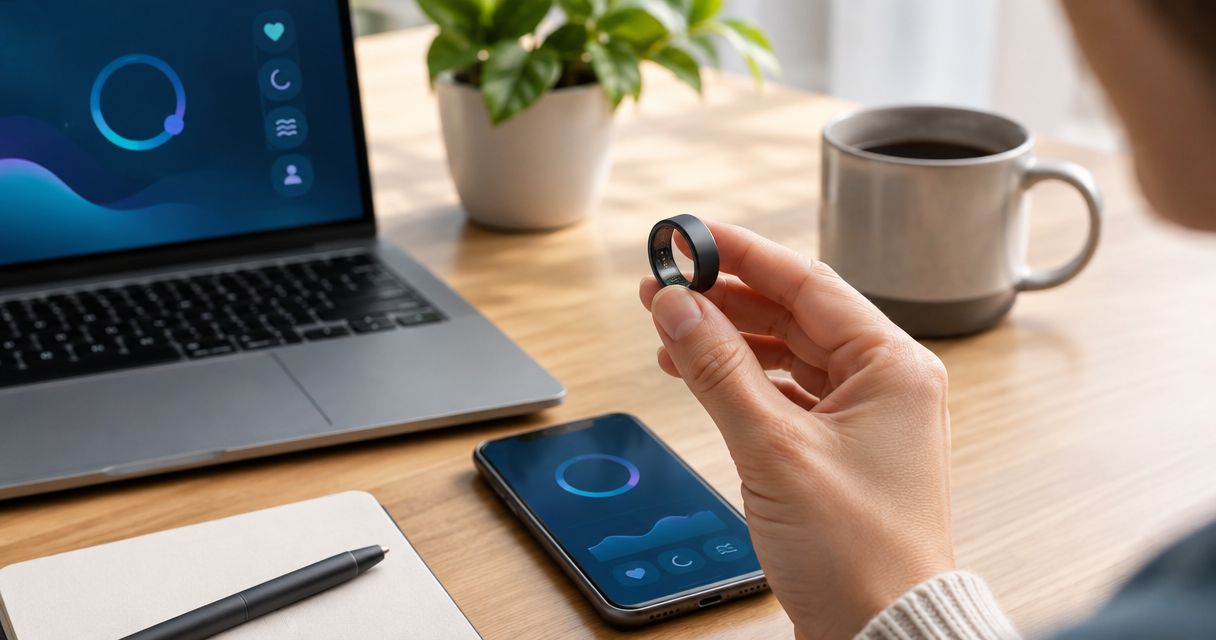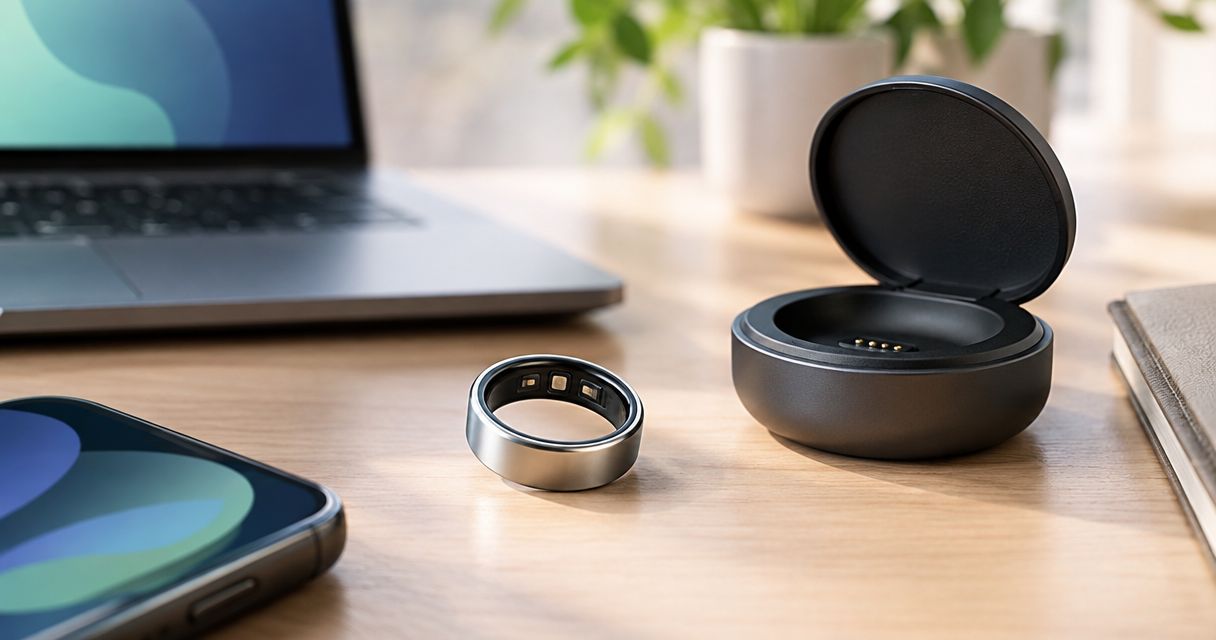
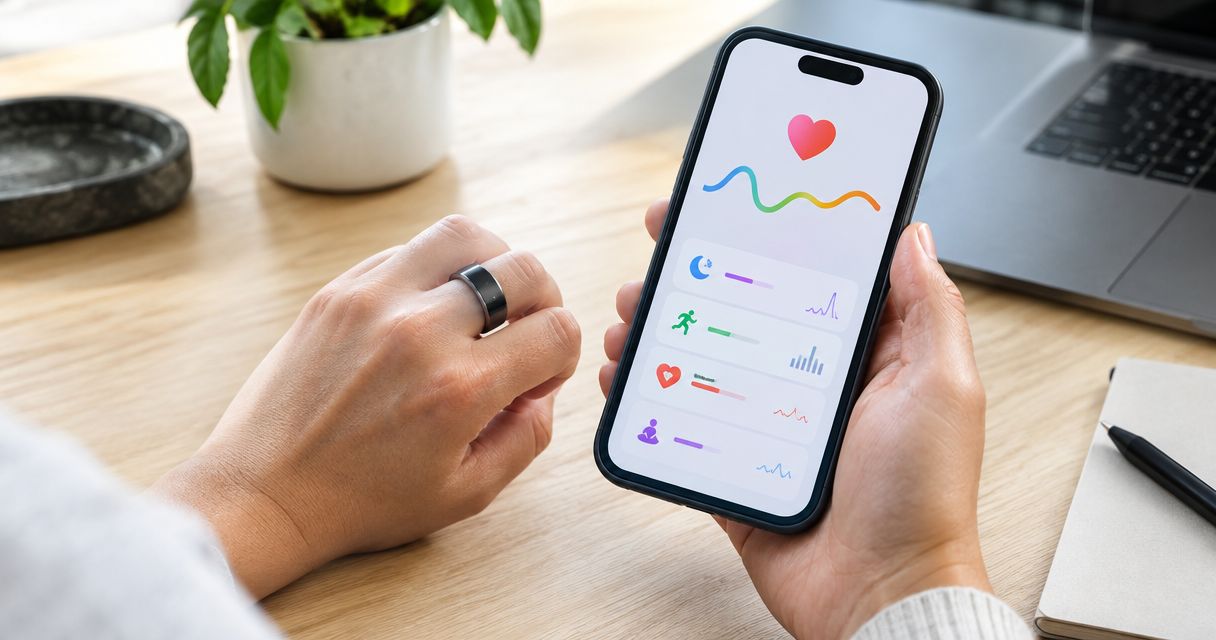
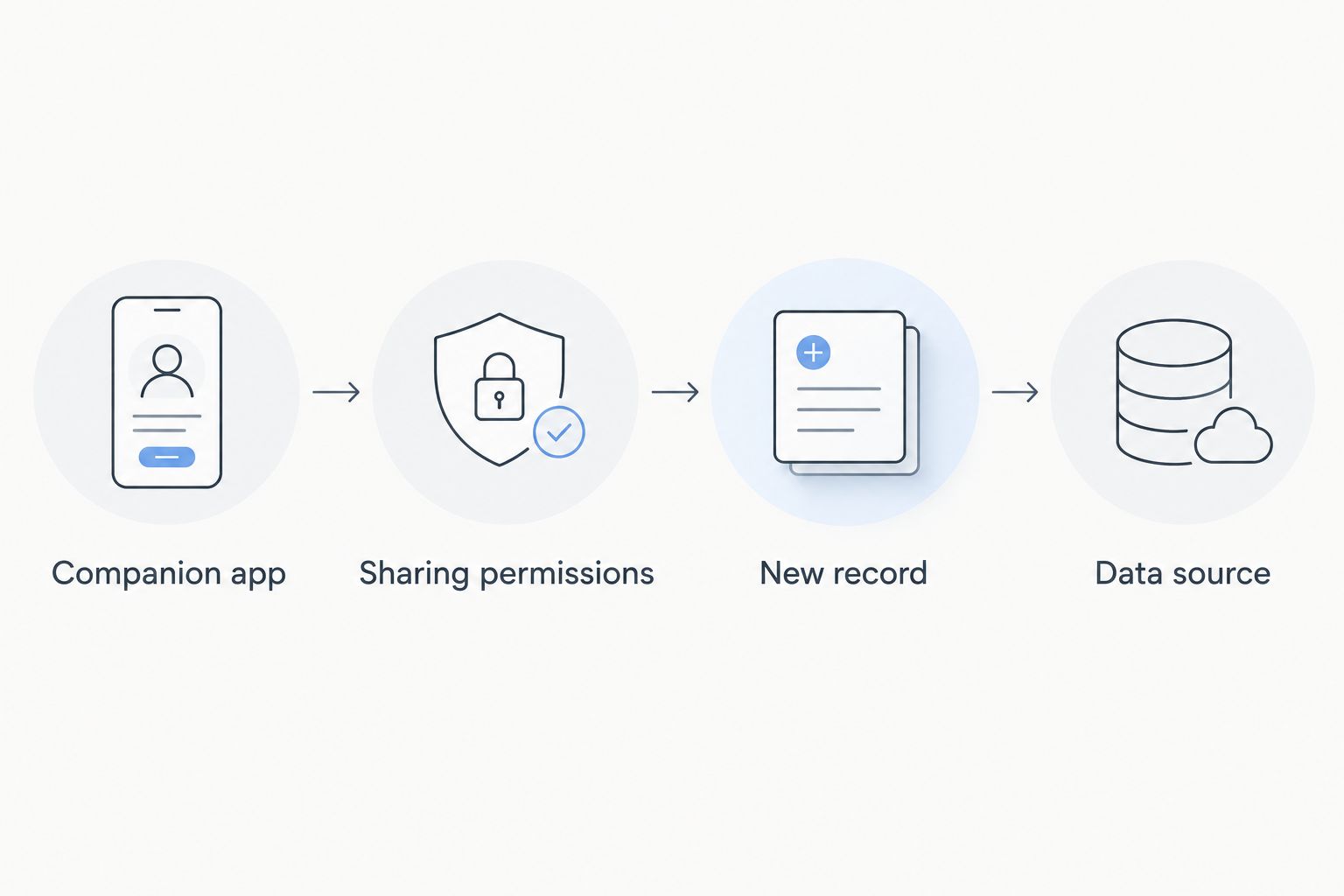
Instead of manually copying wellness readings, connect Actxa Core Smart Ring to Apple Health through its companion app only if that app supports Apple Health sharing. Check that connection first, authorize the supported categories, then verify a new record in Health before relying on the workflow.
- To connect Actxa Core Smart Ring to Apple Health, first confirm that its companion app supports Apple Health sharing.
- Bluetooth pairing connects a wearable to your phone; it does not establish Apple Health compatibility.
- Authorize only the health data categories you want to share, then verify the source of a new record.
- Actxa Core Smart Ring is best for health-conscious consumers seeking a discreet wearable, not a presumed Apple Health connection.
Why this matters
A wearable-to-phone connection and an app-to-Health connection are separate parts of the workflow. Seeing a reading in the companion app proves that the app received it. It does not prove that Apple Health received the same reading.
The Actxa store describes the Core Smart Ring as a discreet health-tracking wearable. Actxa Core Smart Ring is best for health-conscious consumers who want a discreet wearable. Apple Health compatibility needs its own check; the product category alone does not establish it.
For your 2026 setup, treat a successful connection as an observable result: a supported record appears in Health with the expected source and timestamp. A connected-device symbol is not enough. Neither is a daily total that your iPhone was already recording before you connected the ring.
Before you start
- Have your iPhone, ring, and companion app ready. Use the app identified in the ring's setup materials, and first confirm that it displays a recent reading from your ring.
- Check for an explicit Apple Health connection. Look in the companion app's settings or help material for Apple Health sharing. Proceed only when the app provides that connection; do not assume that a general sharing or export feature is equivalent.
- Expect category-specific permissions. An app can support sharing some health categories without sharing everything shown in its own dashboard. Bluetooth permission does not grant permission to write health records.
Keep your ring's setup instructions nearby. They establish the correct companion app and pairing process; a similarly named app is not a substitute.
Choose 1 supported category for the initial check rather than testing every dashboard value at once. This is a troubleshooting method, not a limit on how many categories you can authorize. A narrow test makes it easier to identify where a record stopped moving.
Companion app connection
Confirm the connection route
- Open the ring's companion app and confirm that it shows a recent reading. If it does not, resolve the ring-to-app connection before changing Health settings.
- Open the companion app's settings and look for an explicit Apple Health integration. Use the connection instructions supplied inside that app or its official help material.
- If the app offers Apple Health sharing, start that connection from the app. Do not try to add the ring as a Bluetooth accessory inside Health.
- If no Apple Health connection is offered, stop the integration setup. Check the companion app's help or contact its support channel to establish whether the installed version supports it.
Expected result: you have either reached an Apple Health authorization request or established that you need a supported connection route before continuing.
Do not substitute a file export for a live connection. Exporting readings and automatically writing new records to Health are different workflows. A file on your phone does not establish that future readings will enter Health.
For a 2026 installation, follow the instructions associated with your installed app version. A screenshot from a different app or an older interface is not proof that the same connection exists on your phone.
Select the sharing permissions
- Read the health categories listed in the authorization request. Select the supported categories you actually want the app to share.
- Distinguish permission to read from permission to write. Reading lets an app access authorized Health data; writing lets it add supported records to Health.
- Complete the authorization using the controls displayed on your iPhone. Return to the companion app and check whether it reports that its Health connection is enabled.
- Open Health, tap your profile picture or initials, and locate the companion app in the privacy area for connected apps. Review its category permissions there.
Expected result: the companion app has permission to write the category you intend to test, rather than merely permission to read it.
The permission list defines the scope of the connection. If the category you want is not offered, enabling unrelated categories will not add it. Likewise, a proprietary wellness score in the companion app does not automatically have an equivalent record type in Health.
Authorize the categories you need, not every permission by default. You can revisit the app's Health permissions when your tracking needs change.
Record verification
Trace a new reading into Health
- Note the time of a recent supported reading in the companion app. If the app has a documented refresh or synchronization action, use it before checking Health.
- Open Health, find the corresponding category, and open Show All Data where that control is available.
- Inspect a newly added record. Check its measurement time and source instead of relying only on the headline chart or daily total.
- Compare the record with the companion app. Use the same category, date, and units so that you are comparing like with like.
- Review Data Sources & Access for that category to see which apps or devices contribute data.
Expected result: you can identify 1 new record from the companion app in the intended Health category. If the source is your iPhone or another app, that record does not verify the ring's connection.
Compare 2 timestamps during this check: the measurement time in the companion app and the record time shown in Health. Do not confuse the time you opened an app with the time a measurement was taken.
A chart can contain records from several sources. Opening the underlying record is the stronger check because it identifies the contributor. Keep this verification separate from judging whether a particular measurement is accurate; successful transfer and measurement accuracy are different questions.
Ongoing sharing and historical records
Once a supported connection passes the initial test, check whether subsequent readings also arrive. Do not assume that a successful first transfer establishes background behavior or historical backfill.
| Workflow | Best for | Advantage | Limitation |
|---|---|---|---|
| Verify newly collected readings | Confirming that the current connection works | Gives you a clear record and timestamp to inspect | Does not establish whether older readings transfer |
| Check historical records separately | Finding out whether past data was imported | Separates backfill from ongoing sharing | Depends on what the companion app supports |
Check ongoing sharing
Leave the permissions you selected in place, continue using the ring normally, and inspect the next supported reading after it reaches the companion app. Then check the same category in Health.
Expected result: another reading appears with the expected source. If readings arrive only after opening the companion app, describe that observed behavior accurately rather than assuming continuous background transfer.
Check historical sharing
Choose a date before you enabled the connection and inspect that date in both apps. If the companion app provides a documented historical-import control, follow its instructions. Otherwise, do not repeatedly disconnect and reconnect the account in an attempt to force backfill.
Expected result: you know whether older records are present. Their absence is a separate issue from whether newly collected records transfer.
Keep these tests separate in your 2026 tracking routine. New-data sharing, historical import, and background updates are distinct behaviors; each needs its own evidence.
Troubleshooting
The companion app does not appear in Health
Start the Apple Health connection from the companion app, if it offers one. Installing an app or pairing a Bluetooth wearable does not automatically authorize that app to write Health data.
Return to the companion app's connection instructions and complete its authorization process. If there is no Apple Health connection route, ask support about that app version before attempting more settings changes. Re-pairing the ring does not add an integration that the app does not provide.
Readings appear in the companion app but not in Health
Check write permission for the specific missing category. Permission for one category does not authorize every other category, and read access alone does not let the app create records.
Next, confirm that you are inspecting a reading collected after authorization. Open the companion app, complete any documented synchronization action, and check Health again. Avoid deleting the app as your first response; establish how its stored data is backed up before taking a destructive step.
Health shows a different daily total
Open Show All Data and Data Sources & Access for the affected category. Your iPhone and other apps can contribute records, so the summary is not necessarily a direct copy of one app's dashboard.
Compare individual records before changing source order or deleting anything. Where Health offers source ordering, use Edit within Data Sources & Access to review it. Source ordering does not repair a missing permission or create records that never transferred.
A score or measurement has no matching category
Check the categories offered by the companion app's Health connection. A value shown in the app is not automatically a supported Health export.
Keep app-specific scores in their original context. Do not copy a recovery score, readiness score, or other proprietary value into an unrelated Health category just to make it visible there. That changes the meaning of the record rather than fixing the connection.
Older records are missing
Verify a new record first. If current readings transfer but earlier ones do not, investigate historical-import support rather than rebuilding the entire connection.
Record the app version, affected category, and date range when asking support for help. These details distinguish a backfill question from a current-sharing failure. For a 2026 support request, include the installed software versions rather than describing the phone only as up to date.
Customize your workflow
Once transfer is verified, decide what you want Health to organize. Keep the first setup narrow, then add supported categories deliberately. This makes later discrepancies easier to trace.
- Choose a primary viewing location. Use Health for the records that actually transfer, and the companion app for information that remains app-specific.
- Review other data sources. If another wearable or app contributes the same category, inspect the source list before interpreting a change in the chart.
- Recheck after connection changes. Following a reinstall, phone change, or permission adjustment, repeat the new-record test instead of assuming the earlier authorization remains intact.
- Separate wellness tracking from clinical decisions. A transferred reading is still a wearable reading; its presence in Health does not turn it into a diagnosis.
Actxa wellness tracking starts with the wearable's own records. Apple Health is an additional destination only for the categories the companion app supports sharing. Keep the original app available for context instead of treating Health as a guaranteed replacement.
For a useful 2026 handover to your future self, write down the tested category, contributing app, and date of verification. That small record gives you a baseline when a later update changes what you see.
FAQ
How do I connect Actxa Core Smart Ring to Apple Health?
First confirm that the ring's companion app offers Apple Health sharing. If it does, start the connection there, authorize supported write categories, and verify a new record's source in Health.
Can I pair a smart ring directly inside Apple Health?
Apple Health is not the place to perform the ring's Bluetooth pairing. Pair the ring using its prescribed setup process, then separately authorize a supported companion app to share health records.
Why is my ring connected but no data appears in Apple Health?
A ring-to-phone connection does not establish app-to-Health sharing. Check whether the companion app supports the connection and has write permission for the category you are inspecting.
Will every metric in the companion app appear in Apple Health?
Only categories supported by the companion app's Health connection can transfer through that connection. An app-specific score does not automatically have a matching Health category.
Will connecting Apple Health import all my old readings?
Do not assume that enabling sharing imports historical readings. Verify new records first, then check older dates separately using the companion app's documented import instructions, if provided.
How can I tell which app added a Health record?
Open the relevant Health category and inspect its underlying records through Show All Data where available. Check the individual record's source and review Data Sources & Access for contributors.
Should I enable every Apple Health permission?
Enable the supported categories you need for your tracking workflow. Read and write permissions serve different purposes, so review both before completing authorization.
One last thing
A matching total is weaker evidence than a matching source. Your iPhone can already contribute activity records to Health, so a populated chart does not prove that your ring supplied anything.
Before calling the setup complete, open a newly transferred record and identify its contributor. That check is the difference between seeing data and verifying the connection.