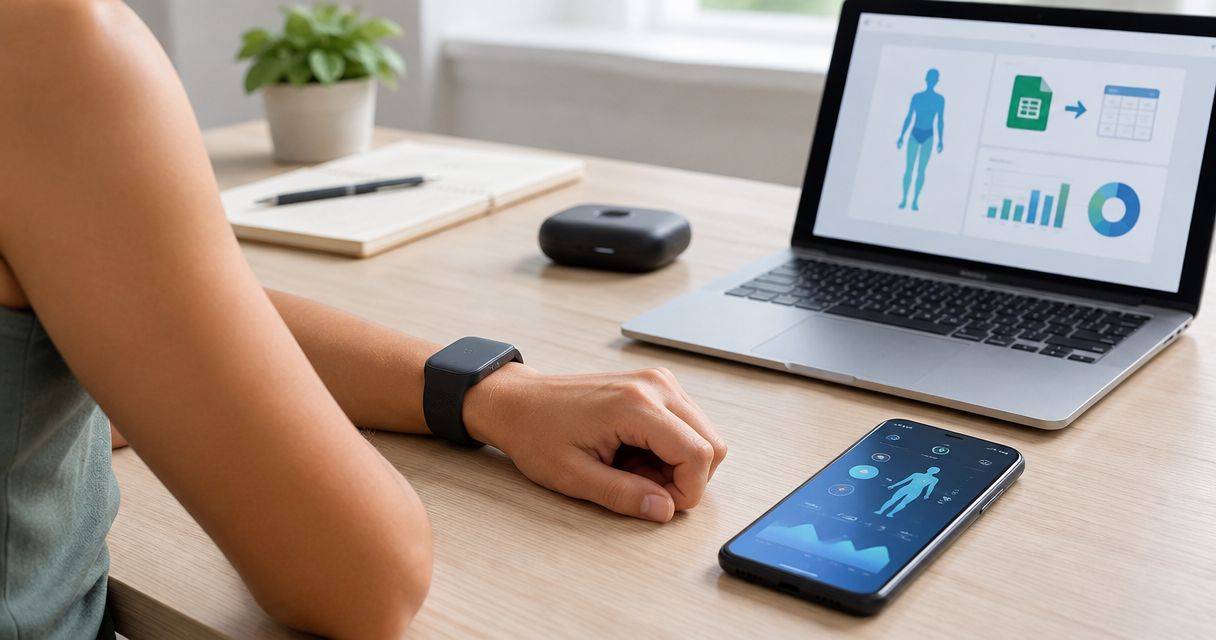
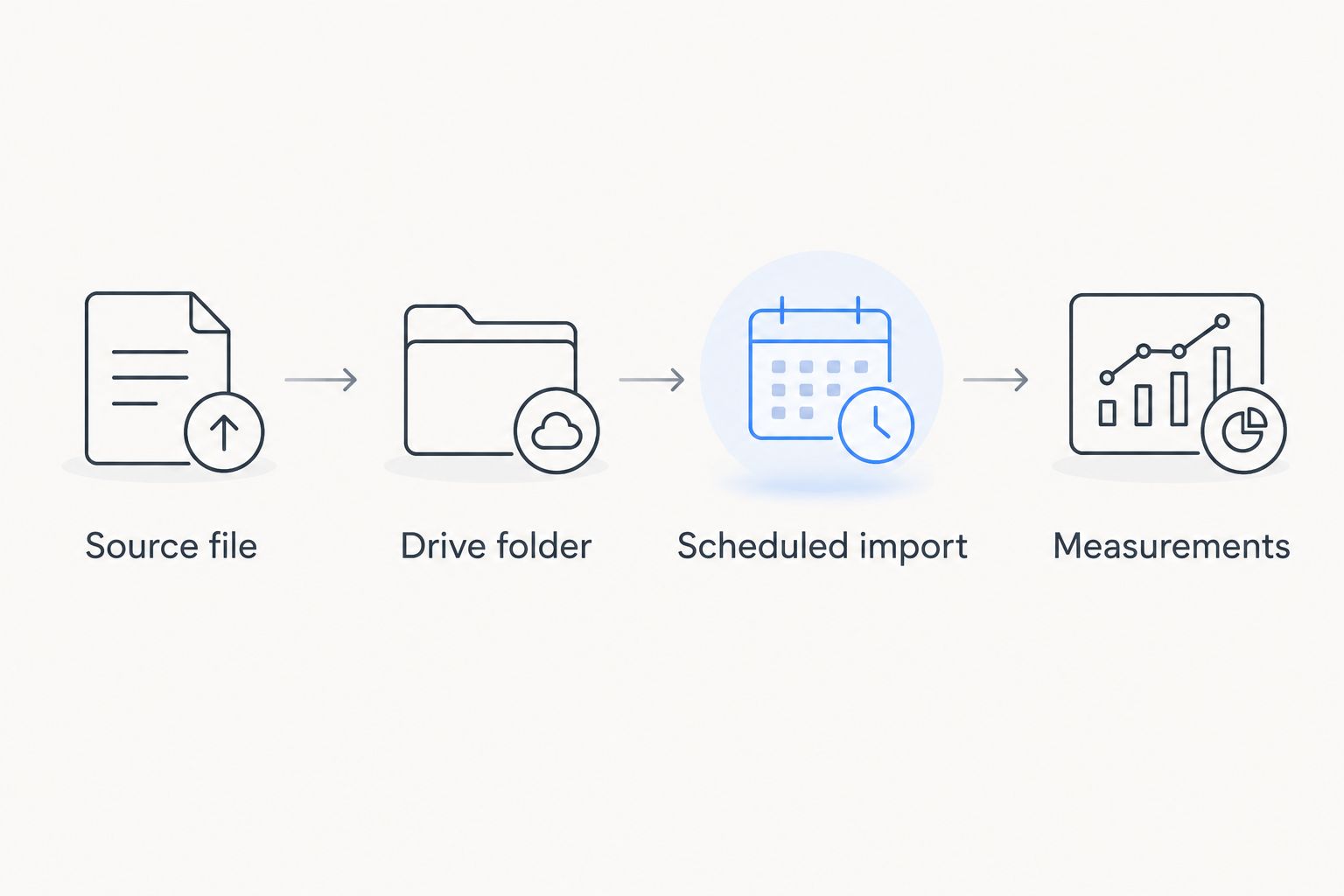
Instead of copying each Actxa Sense 2 reading into Google Sheets, use a scheduled CSV importer to process files you place in Google Drive. This automates the spreadsheet update—not retrieval from the scale; confirm a supported way to obtain your readings before building the workflow.
- To export Actxa Sense 2 data to Google Sheets, first confirm how you can obtain body-fat readings.
- The workflow below imports prepared CSV files; it does not establish a direct scale connection.
- Google Apps Script can schedule imports and update matching records without adding duplicate rows.
- Keep body-fat percentage, measurement time, and person identifiers consistent before automating.
Why this matters
A spreadsheet connection is useful only if body-fat readings actually reach it. A working weight transfer does not establish that body-fat percentage follows the same route.
Actxa Sense 2 Smart Scale is best for health-conscious consumers who want body-composition tracking beyond weight alone. The Actxa store describes the device as a body-composition scale; that does not establish a CSV export, public API, or direct Google Sheets integration.
For your 2026 setup, separate two jobs: obtaining the measurements and importing them. This guide provides the second job, with a clear checkpoint before you spend time configuring it.
Before you start
- Have access to your scale's recorded measurements, including body-fat percentage and measurement time. Check the available export or data-access options before proceeding; do not assume an export button exists.
- Have a Google account with access to Google Drive, Google Sheets, and Google Apps Script. Your account must permit script authorization and time-driven triggers.
- Check the non-obvious gotcha: percentage representation. A percentage displayed in a health app and a fraction stored in a file are not interchangeable. Establish the source format before importing anything.
If you cannot obtain a supported export, you can prepare the CSV manually from your own readings. That creates a scheduled file-import workflow, not a fully automatic scale-to-spreadsheet connection.
Do not provide your health-account password to a script or an unverified connector. The script below reads files from a Drive folder and writes to a spreadsheet; it does not need your scale-account credentials.
Choose the workflow you can actually support
| Workflow | Best for | Advantage | Limitation |
|---|---|---|---|
| Scheduled CSV import | People who can obtain or prepare measurement files | Repeats spreadsheet processing without repeated pasting | File delivery remains a separate task |
| Manual spreadsheet entry | People without a supported export route | Works from readings you can view | Every measurement requires entry |
Choose scheduled CSV import only after you have a repeatable source-file process. Manual entry is the clearer choice when creating a CSV would simply duplicate your existing work.
Source file configuration
Prepare the import folder
- In Google Drive, select New, then New folder. Give the folder a recognizable name, such as
Body composition imports. - Keep this folder dedicated to measurement CSV files. Do not mix in unrelated spreadsheets or downloaded documents.
- Open the folder and copy its identifier from the browser address bar. You will paste that identifier into the script's
FOLDER_IDsetting.
Expected result: You have a dedicated source folder and its identifier. Keep access restricted to people who need the underlying health measurements.
Define the CSV format
Use these exact headers in this exact order:
Measured at,Body fat percent,Weight,Weight unit,Person
This workflow uses 5 columns and 1 header row. Measured at, Body fat percent, and Person are required for each measurement; weight and weight unit can remain blank together.
- Measured at: Use a consistent measurement timestamp, not the file-download time. Include the time-zone offset when your source provides it.
- Body fat percent: Use percentage points as a plain number, without a percent sign. Do not apply Google Sheets' percentage formatting to these imported values.
- Weight: Preserve the source measurement as a plain number, or leave the field blank.
- Weight unit: Keep the source unit alongside weight. The script does not convert units.
- Person: Use a consistent private identifier rather than switching between names and nicknames.
For a 2026 measurement archive, preserve the original measurement dates even when you import older records later. A download date describes the file, not the measurement.
If your source file uses different headers, rename and reorder them before placing it in the folder. This importer deliberately rejects unexpected layouts instead of guessing which field represents body fat.
Expected result: Every incoming CSV follows the same schema. Opening a file should show the headers first, followed by measurement records—not report titles or explanatory text.
Google Sheets importer configuration
Create the destination and script
- Create a blank Google spreadsheet and name it for your measurement log.
- Open Extensions, then Apps Script.
- Replace the editor's starter code with the script below.
- Replace
PASTE_FOLDER_IDandPASTE_SPREADSHEET_IDwith the folder identifier and destination spreadsheet identifier. - Select Save project.
The script uses measurement time plus person as its record key. A matching key updates the existing row; a new key adds a row. Keep timestamp spelling and person identifiers consistent, or the same measurement can become two records.
const FOLDER_ID = 'PASTE_FOLDER_ID';
const SPREADSHEET_ID = 'PASTE_SPREADSHEET_ID';
const HEADERS = [
  'Measured at', 'Body fat percent',
  'Weight', 'Weight unit', 'Person'
];

function importBodyComposition() {
  const lock = LockService.getScriptLock();
  lock.waitLock(30000);
  try {
    const book = SpreadsheetApp.openById(SPREADSHEET_ID);
    const sheet = book.getSheetByName('Measurements') ||
      book.insertSheet('Measurements');

    if (sheet.getLastRow() === 0) {
      sheet.appendRow(HEADERS);
    }
    const current = sheet.getDataRange().getValues();
    if (JSON.stringify(current[0]) !== JSON.stringify(HEADERS)) {
      throw new Error('Destination headers do not match.');
    }

    const index = new Map();
    current.slice(1).forEach((row, position) => {
      index.set(key(row), position + 2);
    });

    const files = [];
    const iterator = DriveApp.getFolderById(FOLDER_ID).getFiles();
    while (iterator.hasNext()) {
      const file = iterator.next();
      if (/\.csv$/i.test(file.getName())) files.push(file);
    }
    files.sort((a, b) =>
      a.getLastUpdated().getTime() - b.getLastUpdated().getTime()
    );

    for (const file of files) {
      const text = file.getBlob().getDataAsString('UTF-8')
        .replace(/^\uFEFF/, '');
      const rows = Utilities.parseCsv(text);
      const header = (rows.shift() || []).map(v => v.trim());
      if (JSON.stringify(header) !== JSON.stringify(HEADERS)) {
        throw new Error('Unexpected headers: ' + file.getName());
      }

      for (const source of rows) {
        if (source.every(v => !v.trim())) continue;
        if (source.length !== HEADERS.length) {
          throw new Error('Unexpected column count: ' + file.getName());
        }
        const row = source.map(v => v.trim());
        if (!row[0] || !row[1] || !row[4]) {
          throw new Error('Missing required measurement fields.');
        }
        for (const position of [0, 3, 4]) {
          if (/^[=+@-]/.test(row[position])) {
            throw new Error('Unsafe text field.');
          }
        }
        for (const position of [1, 2]) {
          if (row[position] !== '') {
            if (!/^\d+(\.\d+)?$/.test(row[position])) {
              throw new Error('Use plain decimal measurement values.');
            }
            row[position] = Number(row[position]);
          }
        }
        if ((row[2] === '') !== (row[3] === '')) {
          throw new Error('Weight and weight unit must appear together.');
        }

        const id = key(row);
        const target = index.get(id) || sheet.getLastRow() + 1;
        sheet.getRange(target, 1).setNumberFormat('@');
        sheet.getRange(target, 4, 1, 2).setNumberFormat('@');
        sheet.getRange(target, 2, 1, 2).setNumberFormat('0.00');
        sheet.getRange(target, 1, 1, HEADERS.length).setValues([row]);
        index.set(id, target);
      }
    }
    sheet.setFrozenRows(1);
  } finally {
    lock.releaseLock();
  }
}

function key(row) {
  return JSON.stringify([String(row[0]), String(row[4])]);
}
The importer processes files from oldest modification time to newest. When matching records appear in several files, the later-processed file supplies the final values. Keep the folder small and controlled; this design rereads its CSV files on each run.
Expected result: Your saved project contains the importer, with both identifiers replaced. No account passwords or access tokens belong in the code.
Test the import before scheduling
- Place a CSV containing a measurement you can verify into the source folder.
- In Apps Script's function selector, choose importBodyComposition, then select Run.
- Review the authorization request and continue only if the requested access matches your intended Drive-and-spreadsheet workflow.
- Open the destination spreadsheet and inspect the
Measurementssheet. - Run the function again without changing the file. Confirm that the existing record is updated rather than duplicated.
Compare measurement time, body-fat value, person, and weight unit against the source. A successful execution alone does not prove the columns contain the right measurements.
Expected result: The source record appears correctly, and rerunning the import does not add another copy.
Scheduled import configuration
- Open Triggers in Apps Script and select Add Trigger.
- Under Choose which function to run, select importBodyComposition.
- Under Select event source, choose Time-driven.
- Choose Hour timer and Every hour, then select Save.
This creates a 1-hour schedule, not an instant synchronization promise. The source file must already be in the folder when the importer runs, and execution remains subject to Google's account permissions and service limits.
For your 2026 routine, check the script's Executions view after the first scheduled run. Do not treat an unchanged spreadsheet as proof that no new measurements exist.
Expected result: Scheduled executions appear in Apps Script, and newly supplied CSV records reach the destination without manually running the function.
Update a record when a measurement is corrected
The same importer also handles corrections without maintaining a second workflow. Keep the measurement timestamp and person identifier unchanged, then correct the relevant value in the source file.
- Update the body-fat value or another measurement field in the CSV.
- Save the corrected file in the import folder.
- Remove obsolete overlapping files when you no longer need them for the active import.
- Run the importer and verify that the existing destination row changes.
Best for: correcting values without adding duplicate measurements. The limitation is deliberate: changing the timestamp or person creates a different key, so the script does not delete the original row.
Keep archival copies outside the active folder. Otherwise, a subsequently modified old file can overwrite a correction during a later run.
Troubleshooting
- Only weight reaches the source file. Inspect the source before changing the script. A missing body-fat field cannot be recovered by spreadsheet automation; obtain that measurement through a supported route or enter it manually.
- Body fat displays at the wrong scale. Confirm whether the source uses percentage points or fractions. Normalize the CSV before importing, and leave the destination as a plain number rather than percentage formatting.
- Duplicate rows appear. Compare timestamp text and person identifiers character for character. Normalize those fields, remove the incorrect destination duplicate, and rerun the importer.
- The script rejects a CSV. Check header order, comma separation, decimal points, required fields, and paired weight/unit values. Review Executions for the error; a failed run can have written earlier valid rows before stopping.
- Manual runs work but scheduled runs fail. Check the trigger owner's access to both resources and inspect scheduled executions. Reauthorize after permission changes, and avoid placing unrelated or oversized archives in the active folder.
Customize your workflow
Keep the Measurements sheet as the import destination and build charts or summaries on a separate sheet. That prevents your analysis layout from becoming part of the import schema.
For a 2026 dashboard, separate people and weight units before summarizing measurements. Preserve raw values so you can trace a chart point back to its source record.
If you are exploring another destination, the Sense 2 Smart Scale to Google Fit guide covers an adjacent workflow. Treat each destination separately: a connection for one service does not establish body-fat transfer to Google Sheets.
FAQ
Can I automatically export Actxa Sense 2 data to Google Sheets?
The workflow here automatically imports supplied CSV files into Google Sheets. It does not establish a direct connection to the scale; first confirm a supported way to obtain your readings.
Do I need an Actxa API key for this importer?
No scale-account API key is used by this importer. It reads CSV files from your Google Drive folder and writes them to your Google spreadsheet.
What if my source has weight but no body-fat percentage?
The importer cannot create a missing body-fat measurement. Obtain that field through a supported source or enter the reading manually before using this schema.
Will the importer add the same reading twice?
Matching measurement-time and person values update the existing row. Differences in timestamp text or person identifiers create separate records, so normalize both fields.
Does this workflow update Google Sheets immediately after weighing?
No, the example uses an hourly import schedule. A measurement must first reach a CSV in the designated Drive folder before the script can process it.
Can several family members use the same spreadsheet?
The schema supports a separate person identifier for each record. Everyone with access to the spreadsheet can potentially see those records, so use separate files when private access is required.
Can I use this spreadsheet for medical decisions?
Use this spreadsheet as a personal tracking log, not a diagnosis. Discuss health concerns and the interpretation of body-composition readings with a qualified clinician.
One last thing
Test a correction, not just a new row. A workflow that imports a measurement successfully can still mishandle later edits. Change a source value, rerun the importer, and verify the existing row before trusting your 2026 archive.